Turning on two-step sign-in
A code from your phone as well as your password, for anyone who can see sensitive records.
Who can do this: Administrators, staff and treasurers have to use it. Counters and group leaders can choose to.
Two-step sign-in means someone who learns your password still can’t get in without your phone. Church records show people’s faith and sometimes their health, so the law expects them to be well protected.
You’ll need a free authenticator app on your phone, such as Google Authenticator, Microsoft Authenticator or 1Password. Install one before you start.
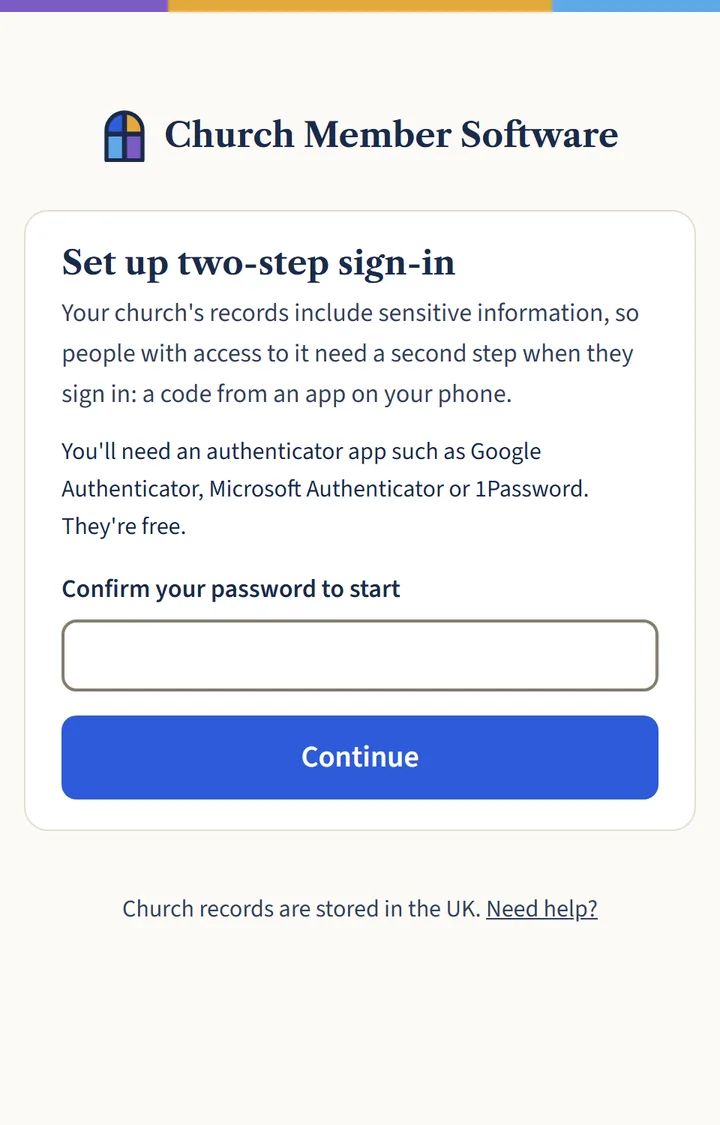
Step 1: Confirm your password
You’ll be asked to set this up when you first sign in. To do it later, go to Settings, then Your account. Type your password and choose Continue.
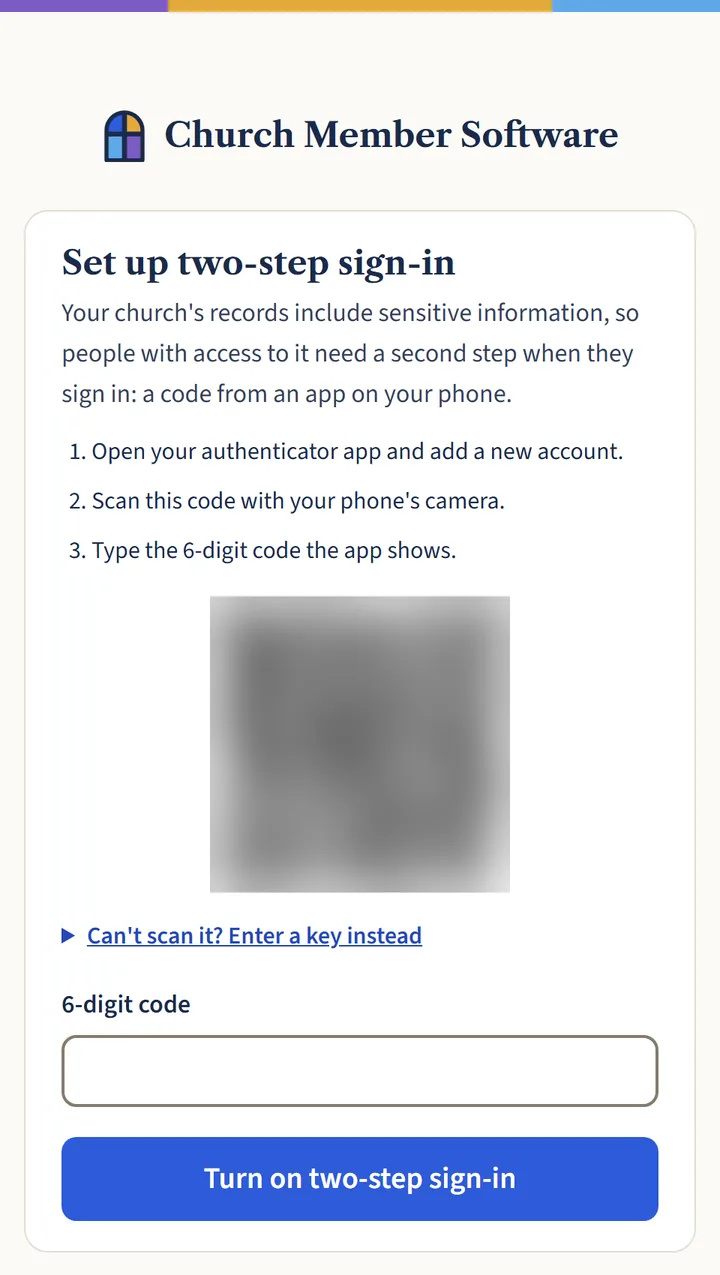
Open a larger view (opens in a new tab) Step 2: Scan the code with your phone
In your authenticator app, add a new account and scan the square code on the screen with your phone’s camera. If you can’t scan it, choose Can’t scan it? Enter a key instead and type the key into the app.
The app now shows a 6-digit code that changes every 30 seconds. Type the current one into the box and choose Turn on two-step sign-in.
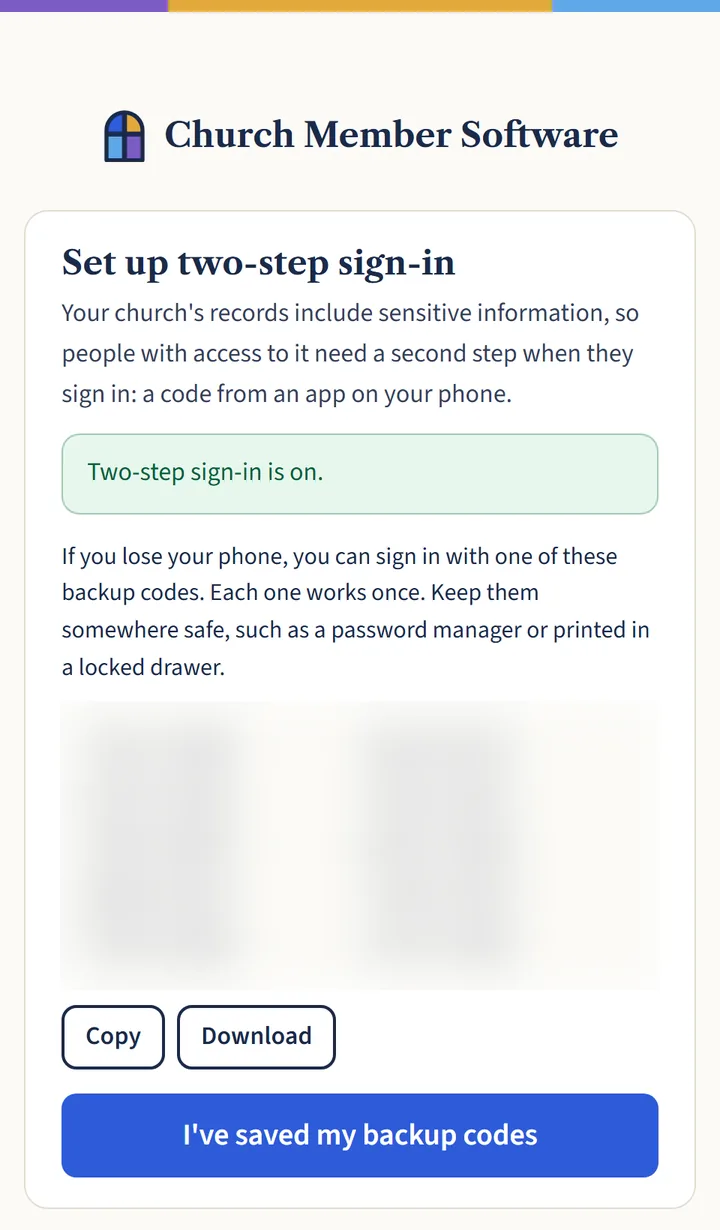
Open a larger view (opens in a new tab) Step 3: Save your backup codes
You’ll see ten backup codes. If you ever lose your phone, each one lets you sign in once. Choose Download or Copy and keep them somewhere safe, such as a password manager or printed in a locked drawer.
Then choose I’ve saved my backup codes.
Open a larger view (opens in a new tab)
What happens next
From now on, after your password you’ll be asked for the code from your app. You can tick Don’t ask again on this device for 30 days on a computer only you use.
Lost your phone? Choose I can’t use my authenticator app when you sign in, and use one of your backup codes. Then set up two-step sign-in again on your new phone.