Adding a person or a household
Add a family in one go, or one person to an existing household.
Who can do this: Administrators and staff
People are kept in households: everyone who lives at the same address. Adding a household lets you put in the whole family at once.
Step 1: Add a new household
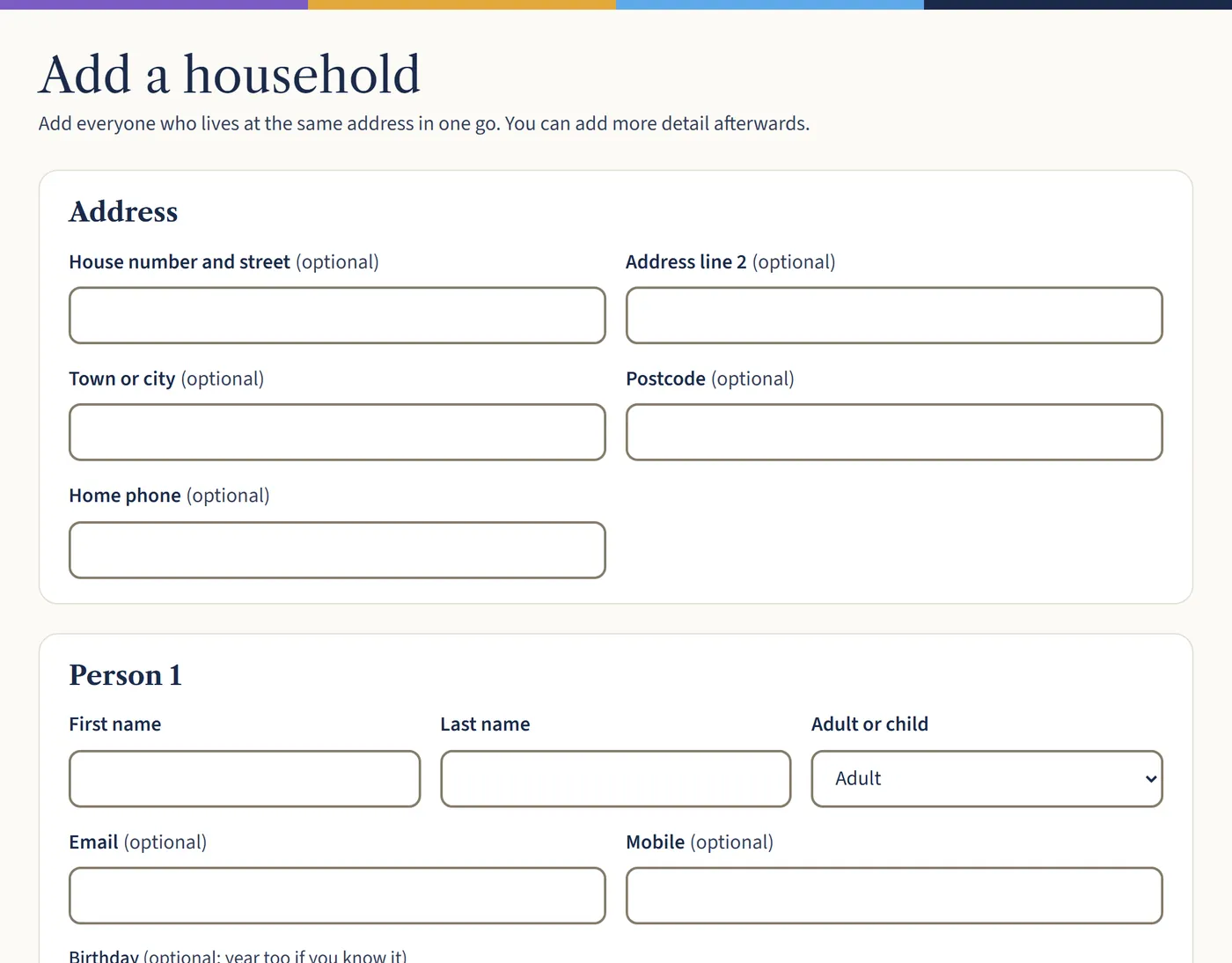
Go to People and choose Add household. Fill in the address once, then each person: first name, last name, and whether they’re an adult or a child. Email, mobile and birthday are optional.
Choose Add another adult or Add another child for each member of the family, then choose the button to add them. Only a first and last name are needed: you can add more detail afterwards.
Open a larger view (opens in a new tab) Step 2: Or add someone to a household that’s already there
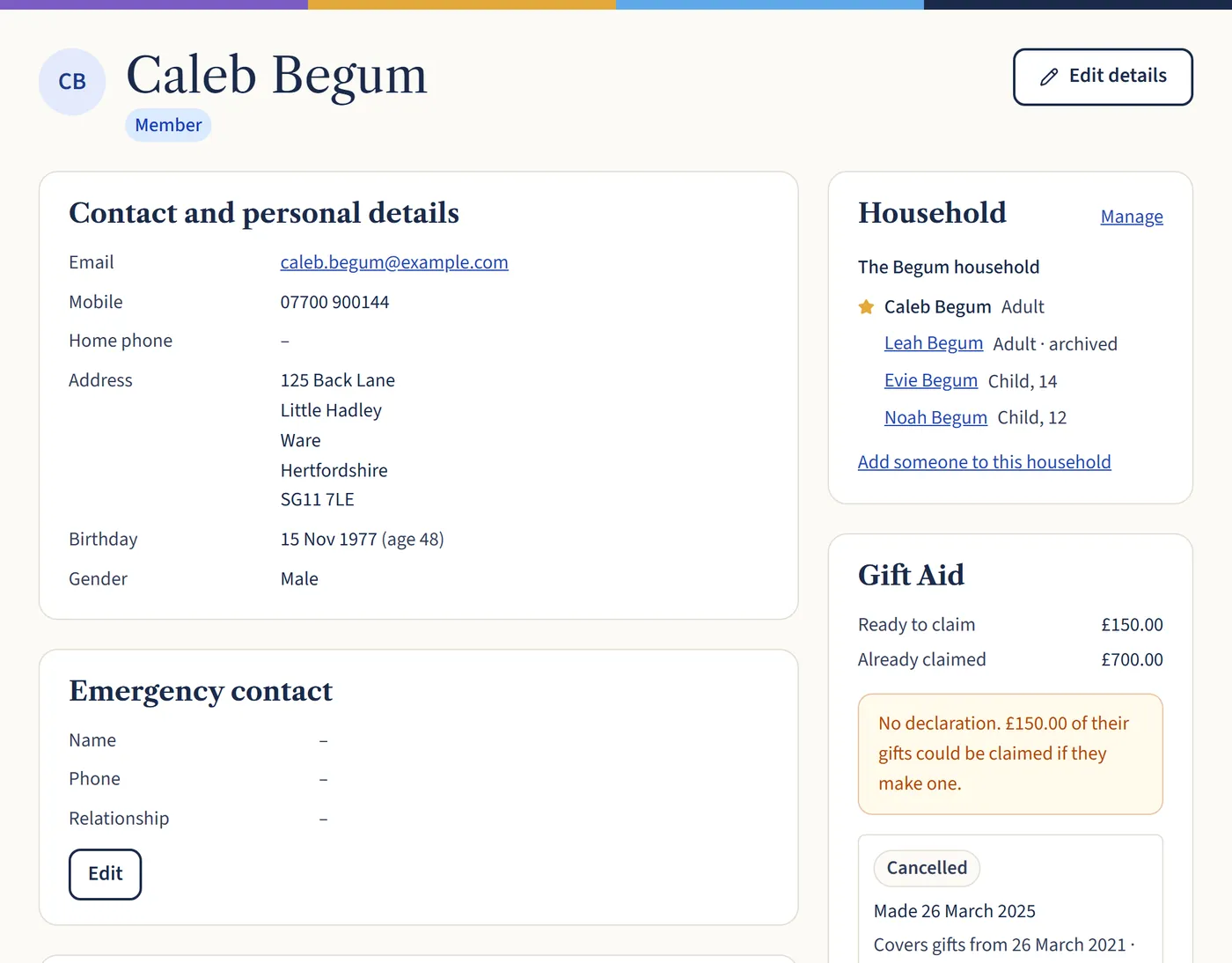
Open anyone in the household and choose Add someone to this household in the Household box. This is the quickest way to add a new baby or someone who’s moved in.
Open a larger view (opens in a new tab) Step 3: Fill in their details
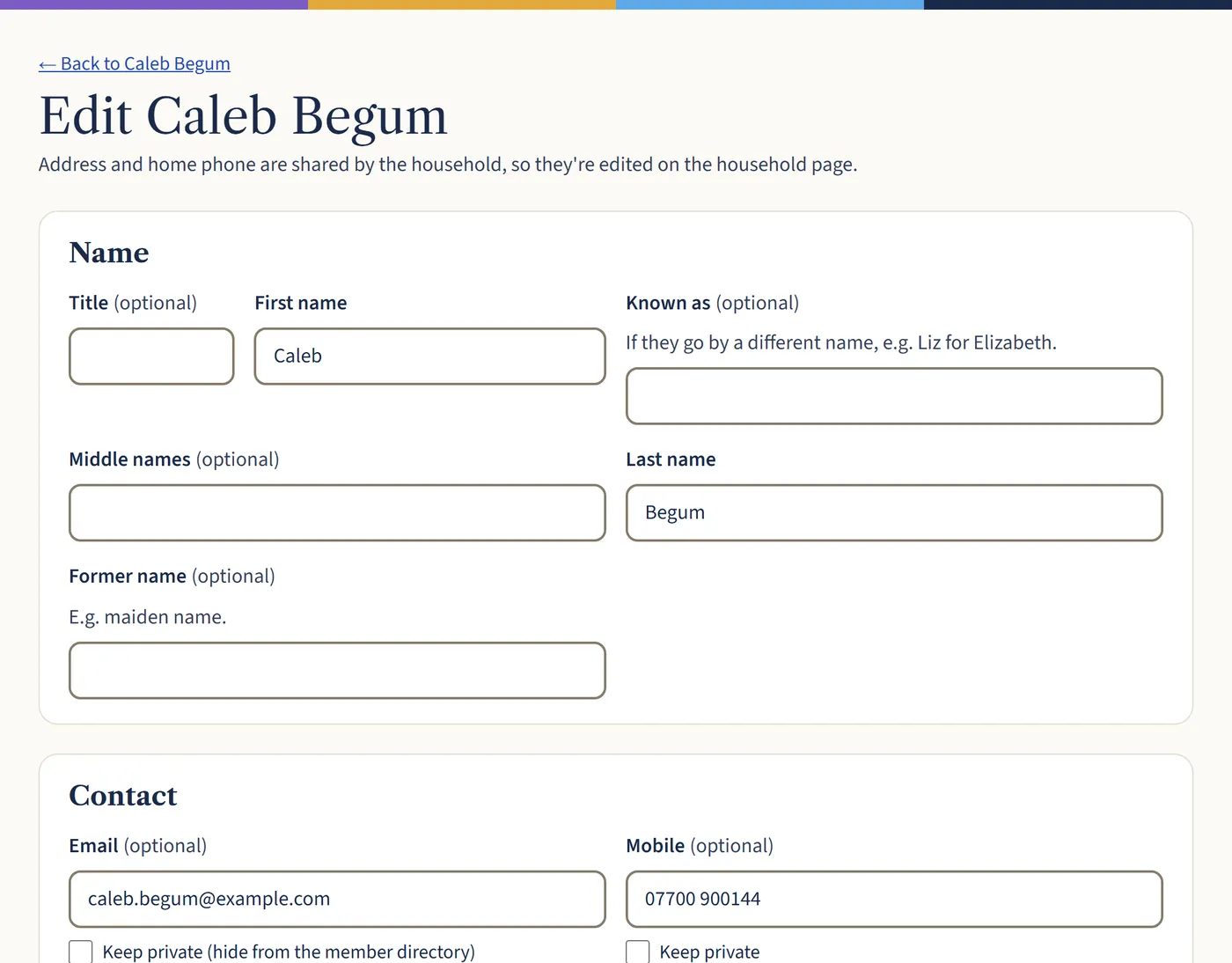
On their record, choose Edit details to add a title, the name they go by, former names, contact details and their birthday. You can mark an email address or mobile number as private, so it’s never shown in the member directory.
Open a larger view (opens in a new tab)
What happens next
Address and home phone belong to the household, so they’re changed on the household page. See Updating details when someone moves.