Saved lists, address labels and exports
Lists that keep themselves up to date, and how to email, print or export them.
Who can do this: Administrators and staff
Step 1: Start with a ready-made list
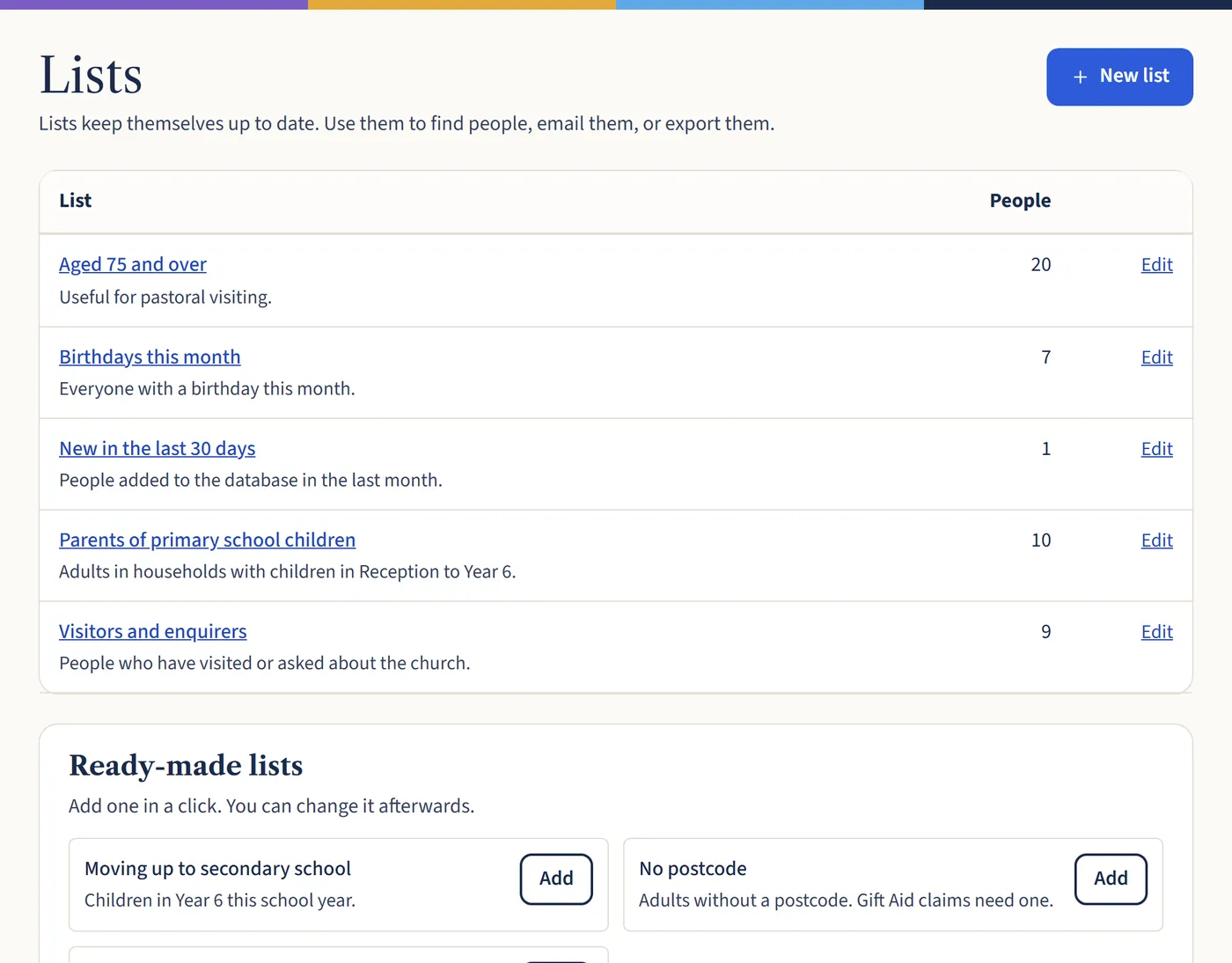
Go to Lists. Under Ready-made lists, choose Add next to one you want, such as Aged 75 and over or Birthdays this month. It’s saved straight away.
Open a larger view (opens in a new tab) Step 2: Or make your own
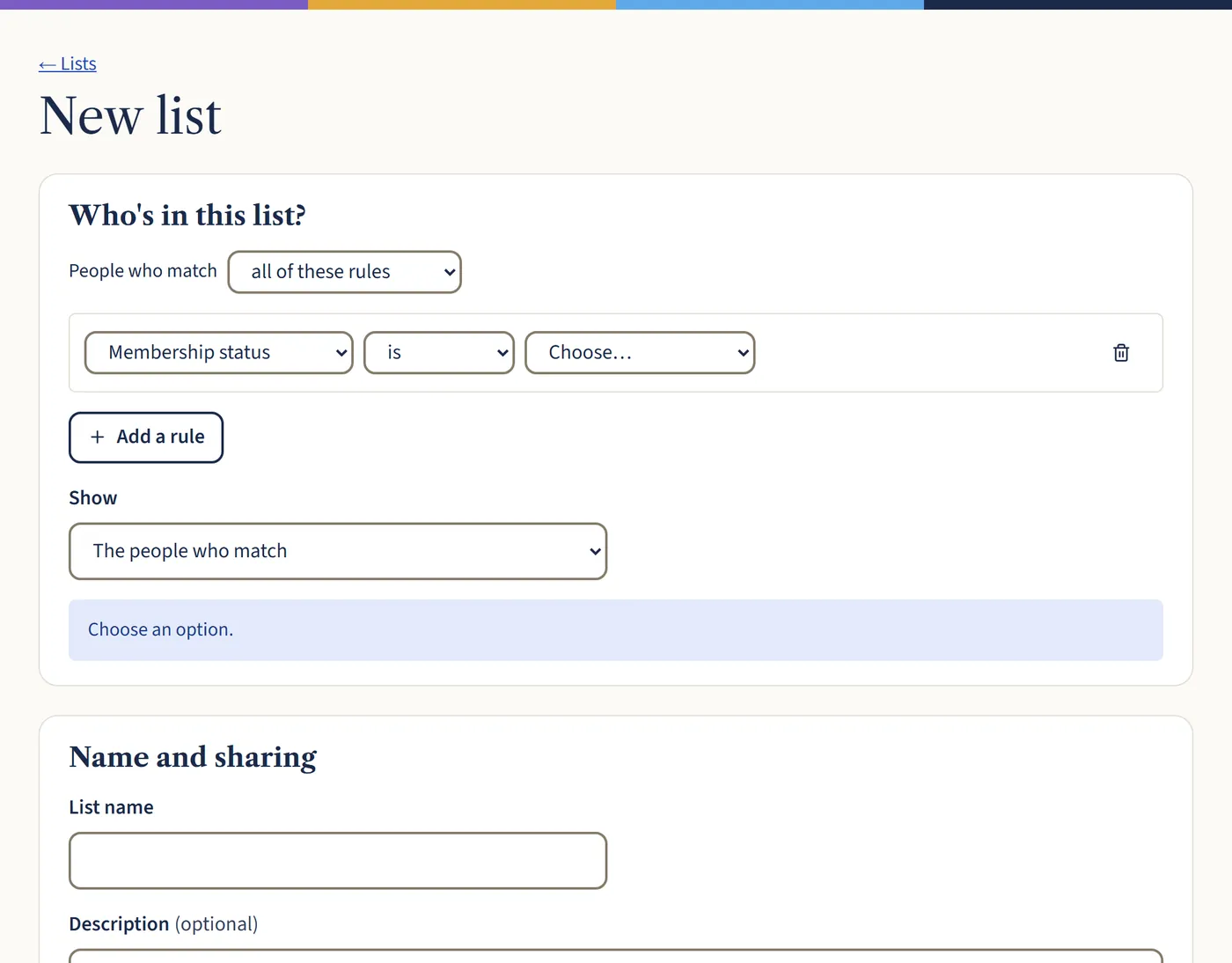
Choose New list. Add rules, for example “Tag is Choir” and “Age is over 70”, and choose whether people must match all of them or any. Under Show, you can list the people themselves, their household’s main contact, or the parents of matching children.
Give it a name and choose Save and view list. Tick Share with the rest of the team if others should see it.
Open a larger view (opens in a new tab) Step 3: Email, print labels or export
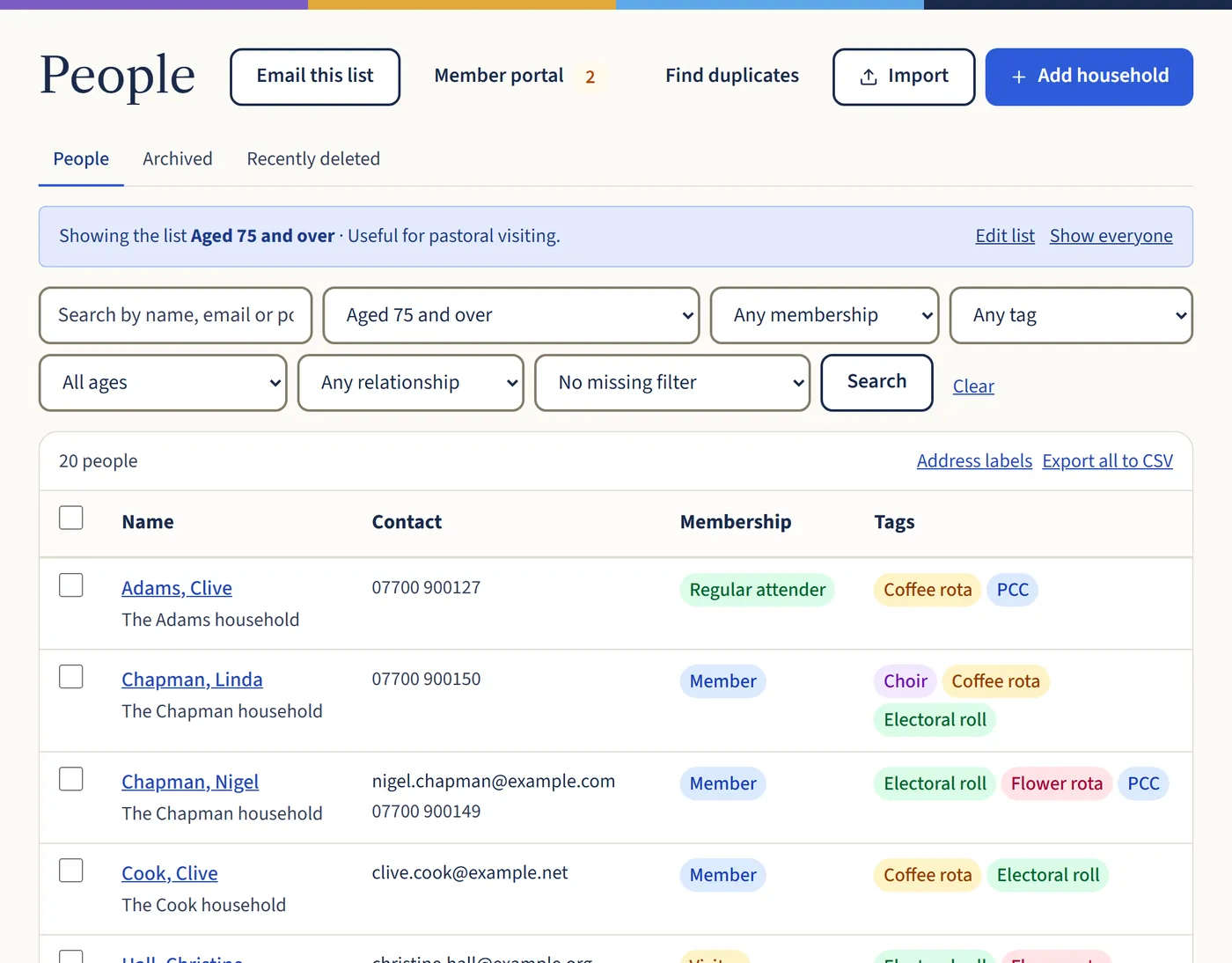
Open a list. Choose Email this list to write to everyone on it, Address labels to print labels, or Export all to CSV for a spreadsheet.
Open a larger view (opens in a new tab)
What happens next
Lists update themselves: someone who turns 75 next week will appear on the list without you doing anything.